How it works
You tag the contact
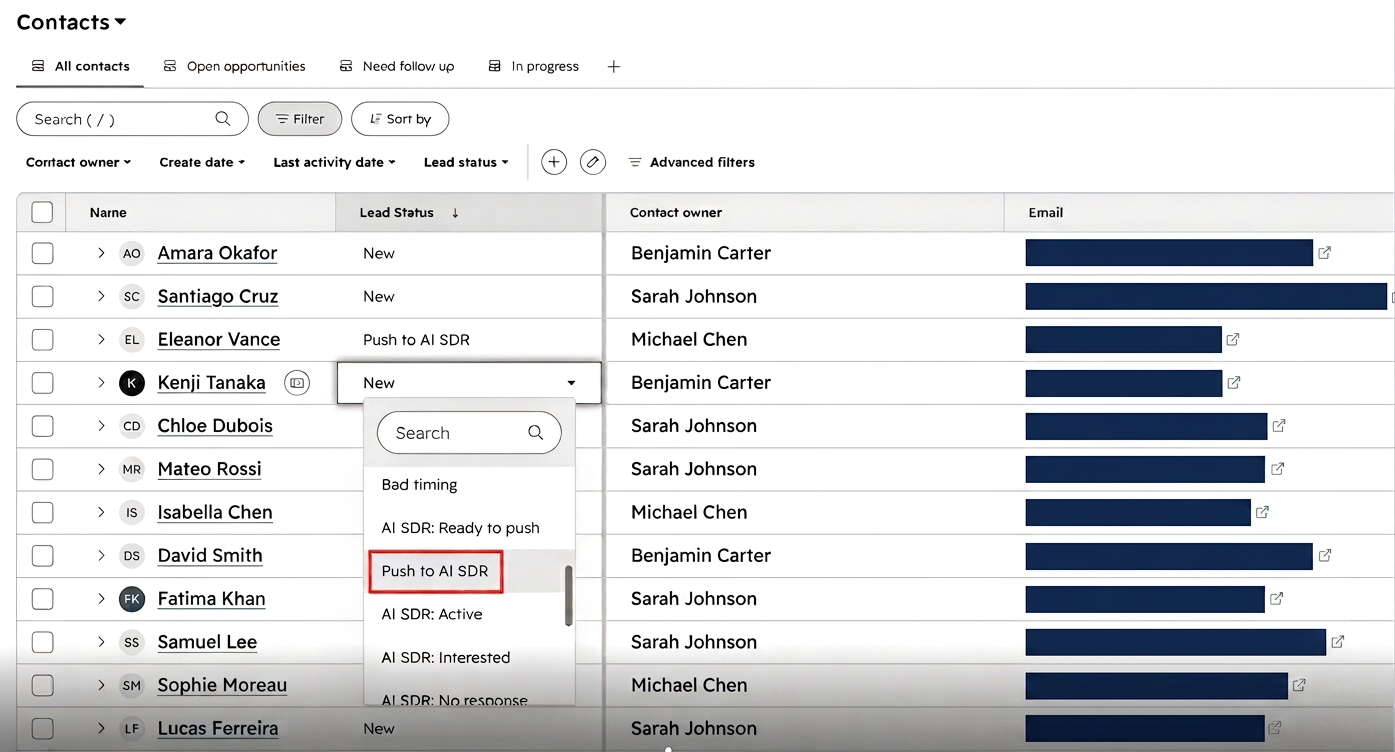
Set a contact’s lead status in HubSpot to Push to AI SDR.
Squirrels.ai pulls it
On demand from inside the mission, or automatically at every interval while the mission runs.
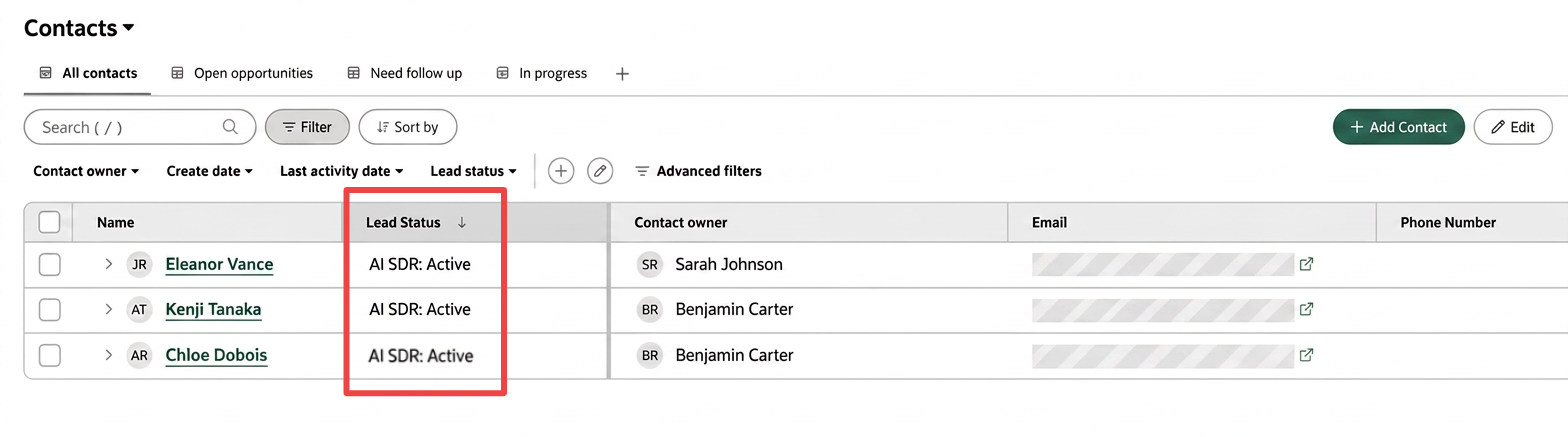
Status goes to Active
Once pulled, the contact’s HubSpot status is updated to AI SDR: Active.
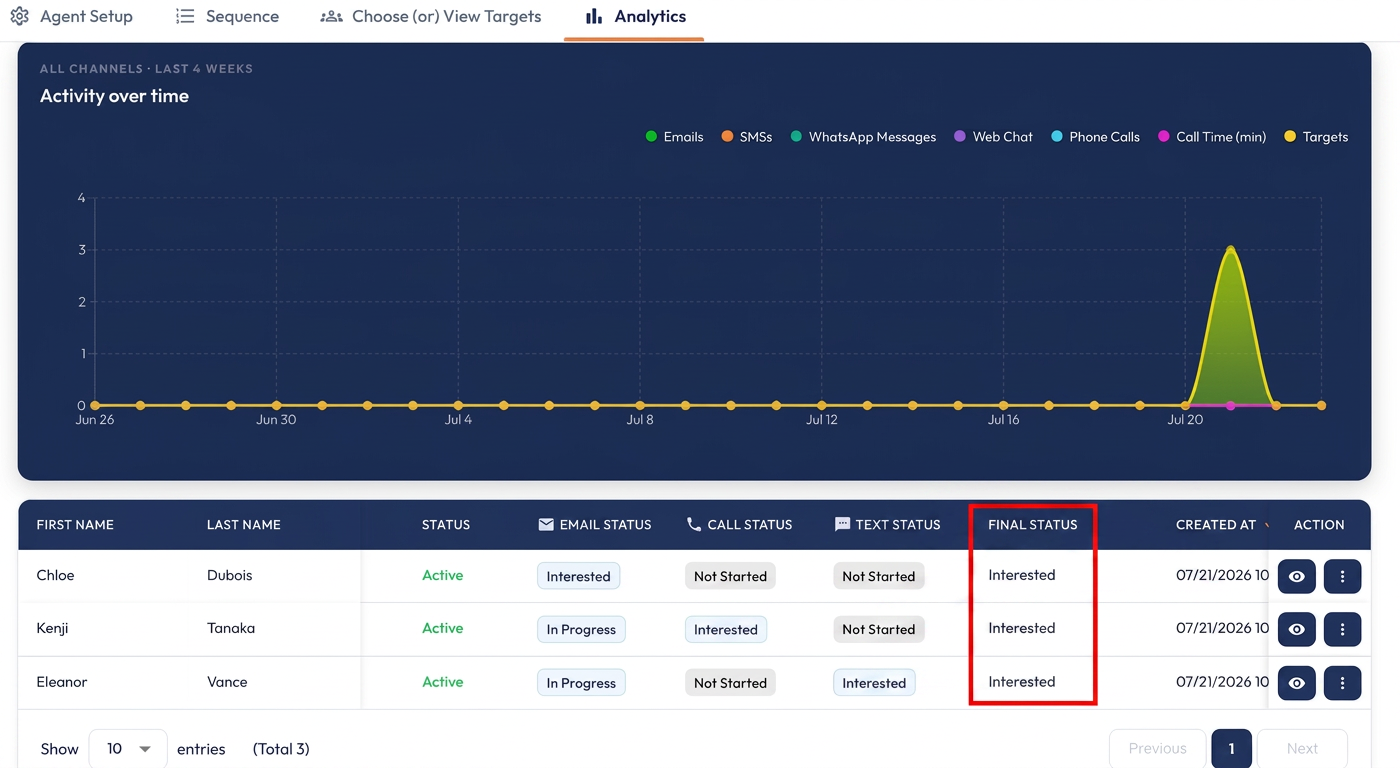
Outcomes sync back
As your agent reaches an outcome, that result is written back to the HubSpot lead status.
Before you start
Configure custom lead statuses in HubSpot
Before connecting your account you must add custom lead statuses in HubSpot, so our AI agent knows which contacts to pull.
- Log in to your HubSpot portal.
- Go to Settings > Objects > Contacts > Lead Status properties.
- Add the following custom lead statuses:
- Push to AI SDR: the trigger status used to push a contact to Squirrels.ai.
- AI SDR: Active: updated automatically by Squirrels.ai once processing starts.
- AI SDR: Interested / Not interested / No response / Invalid (the outcome statuses your agent writes back)
Connect HubSpot to Squirrels.ai
Authorize the connection once, from inside the mission that should receive the contacts.
- Log in to your Squirrels.ai dashboard.
- Open your target mission, for example, your AI SDR mission.
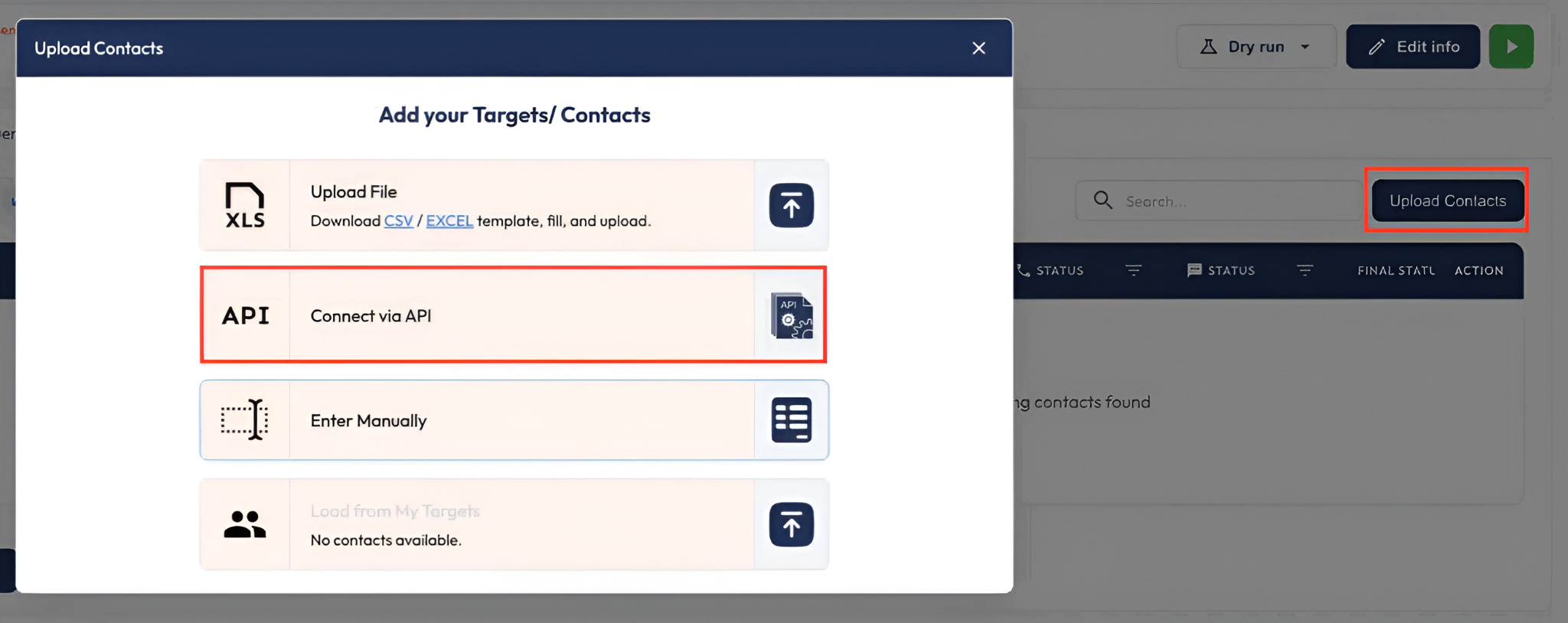
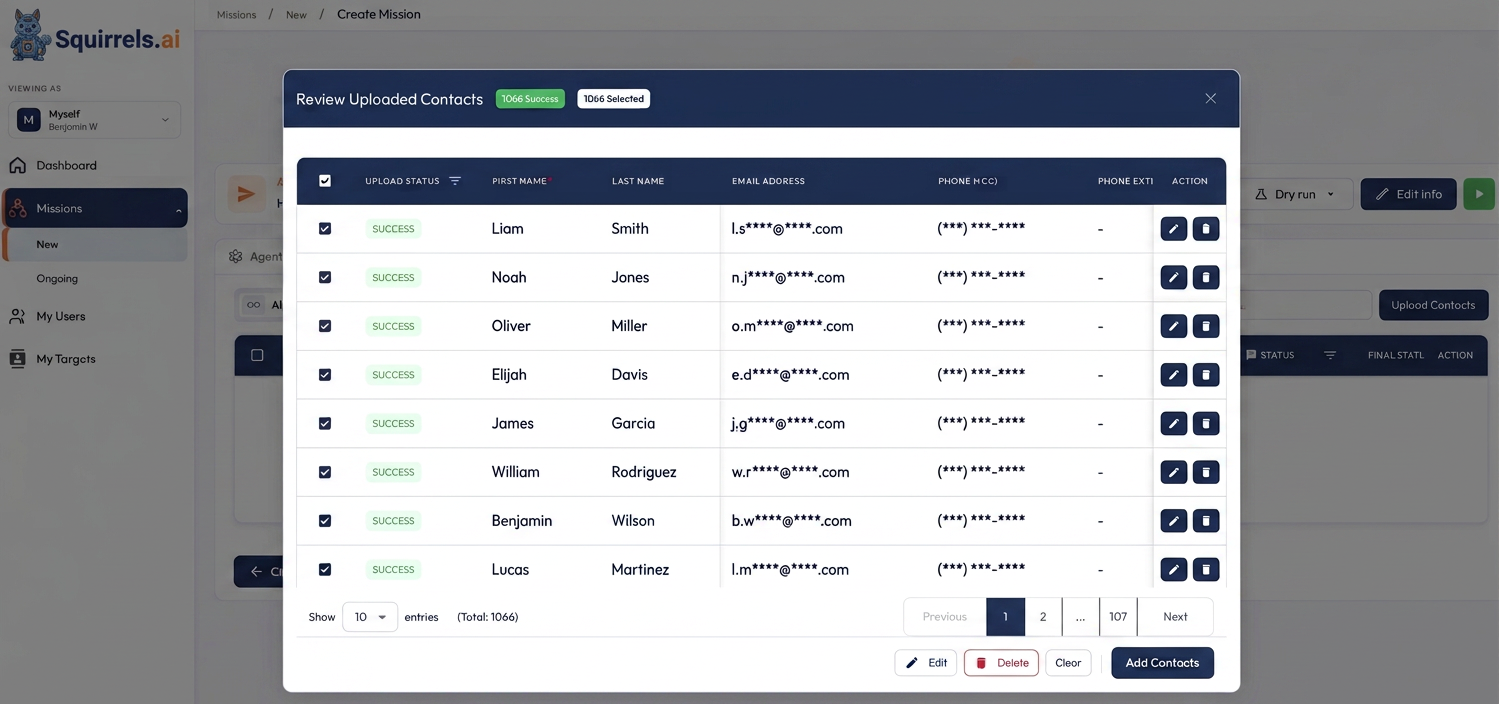
- Go to Upload Contacts and select Connect via API.
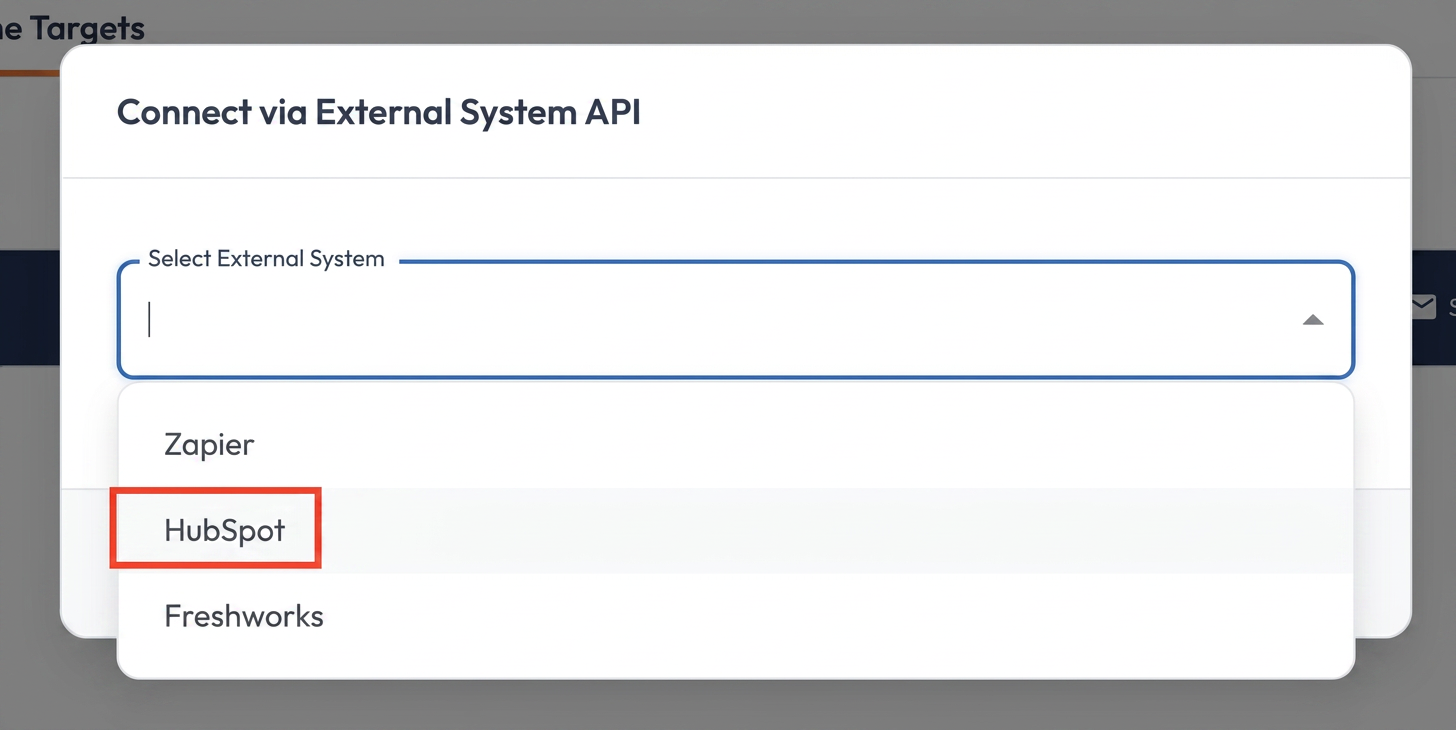
- Choose HubSpot from the integration dropdown and click Connect.
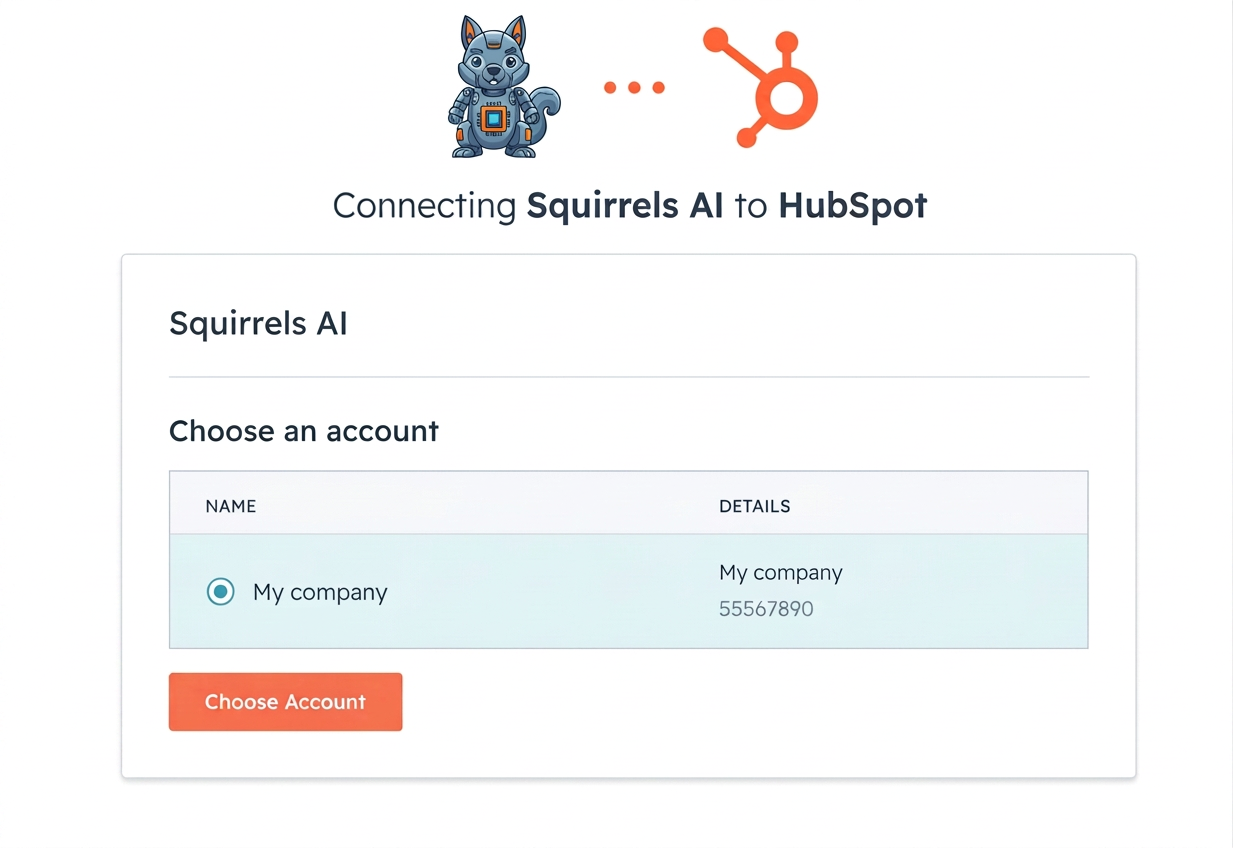
- You are redirected to the HubSpot authorization page. Select the HubSpot account or company you want to link, then click Choose Account and grant permissions. Once approved, you are returned to Squirrels.ai.
Pull contacts and watch statuses sync back
With the account linked, contacts flow in two ways, and every outcome is written back to HubSpot automatically.
- Bring contacts into the mission:
- On-demand sync: manually trigger an immediate pull from inside the mission.
- Automated background job: while your mission is running, Squirrels.ai scans and pulls new Push to AI SDR contacts at every interval.
- Squirrels.ai immediately updates each pulled contact in HubSpot to AI SDR: Active, so you can see at a glance what the agent has taken over.
- As your agent works through email, SMS, WhatsApp and calls, each outcome shows in the mission’s Analytics tab, and the matching lead status is written back to HubSpot.
What each status means
These are the lead status values that move between the two systems. You only ever set the first one by hand. Squirrels.ai automatically updates everything else.
| Lead status | What it means | Set by |
|---|
| Push to AI SDR | Queue this contact for the agent. Picked up on the next sync. | You, in HubSpot |
| AI SDR: Active | The contact has been pulled and the agent is working the sequence. | Squirrels.ai |
| AI SDR: Interested | The contact responded positively during outreach. | Squirrels.ai |
| AI SDR: Not interested | The contact declined or opted out. | Squirrels.ai |
| AI SDR: No response | The sequence completed without a reply. | Squirrels.ai |
| AI SDR: Invalid | The contact could not be reached – for example bad or bouncing contact details. | Squirrels.ai |
What data is shared
The connection is scoped to contacts only. This is everything the integration can see and change in your HubSpot portal; nothing else in your CRM is reachable.
| Data | Direction | What it is used for |
|---|
| Contact recordsread access | HubSpot → Squirrels.ai | Reading the name, email and phone of contacts whose lead status is Push to AI SDR, so the agent knows who to contact. |
| Contact lead statuswrite access | Squirrels.ai → HubSpot | Writing the status back as the agent progresses – AI SDR: Active and then the outcome. |
| Companies, deals, tickets, email content | Not requested | These scopes are not part of the connection, so the integration cannot read or change them. |
The connection uses OAuth, so Squirrels.ai never sees or stores your HubSpot password. You can revoke access at any time from HubSpot > Settings > Integrations > Connected Apps.
Troubleshooting checklist
Contacts not syncing? Work through the four checks below in order.
Connect your CRM and let your AI SDR run the outreach while your lead statuses stay up to date on their own.